


Apple CarPlay is a safe, hands-free way to access your iPhone apps while driving. With Apple CarPlay, you can use your phone to make calls, send messages, and listen to music.
But sometimes Apple CarPlay constantly disconnects , doesn't open properly, or you hear nothing when CarPlay is connected. You might find it really frustrating to sit in your car for hours trying to figure out why your wireless CarPlay isn't working.
Don't worry too much. In this article, we'll examine the causes of Apple CarPlay malfunctions and how to fix them.
For motorcyclists, discover our complete range of CarPlay systems for motorcycles with optimal wireless connectivity.
1. Check that your country (region), phone, and car support Apple CarPlay
You must confirm that your country (region), phone and car support Apple CarPlay.
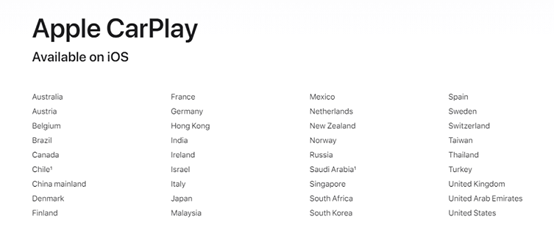
Regional compatibility
-
The image below lists the countries and regions supported by CarPlay
iPhone compatibility
- iPhone 5 with iOS 9 or later
- For wireless CarPlay, iPhone 6 or later is recommended.
List of 2022 cars offering wireless CarPlay
Cars offering wireless CarPlay for 2024:
- Acura: MDX, RDX
- Audi: A3, A4, A5, A6, A7, A8, E-Tron, E-Tron GT, Q3, Q5, Q7, Q8
- BMW: 2 Series, 3 Series, 4 Series, 5 Series, 7 Series, 8 Series, iX, i4, X3, X4, X5, X6, X7, Z4, X1, X2
- Buick: Enclave, Encore GX, Envision
- Cadillac: CT4, CT5, Escalade/Escalade ESV, XT4, XT5, XT6
- Chevrolet: Blazer, Bolt EV, Bolt EUV, Camaro, Corvette, Equinox, Malibu, Silverado 1500, Silverado 1500 LTD, Silverado 2500/3500, Suburban/Tahoe, Trailblazer, Traverse
- Chrysler: Pacifica
- Dodge: Durango
- Ford: Bronco, Edge, E-Transit, Expedition/Expedition Max, F-150, F-150 Lightning, Mustang Mach-E
- GMC: Acadia, Hummer EV, Sierra 1500, Sierra 1500 LTD, Terrain, Yukon/Yukon XL
- Honda: Accord, Civic
- Hyundai: Accent, Elantra, Ioniq (excludes Ioniq 5), Kona, Kona EV, Palisade, Santa Cruz, Santa Fe, Sonata, Tucson, Venue
- Infiniti: Q50, Q60, QX50, QX55, QX60, QX80
- Jeep: Compass, Grand Cherokee/Grand Cherokee L, Wagoneer/Grand Wagoneer
- Kia: Carnival, Forte, K5, Niro, Rio, Sorento
- Lincoln: Navigator, Nautilus
- Maserati: Ghibli, Levante, MC20, Quattroporte
- Nissan: Armada, Pathfinder, Rogue
- Porsche: 911, Cayenne, Panamera, Taycan, Macan
- Ram: 1500, 2500/3500, ProMaster
- Toyota: Tundra, Supra
- Volkswagen: Arteon, Atlas/Atlas Cross Sport, Golf GTI/Golf R, ID.4, Jetta, Taos, Tiguan
Important note: Keep in mind that not all vehicles from different manufacturers support wireless CarPlay, and support may vary depending on the specific model you purchase. This list may contain omissions; please call your local dealer for more details.
CarPlay is also available on many aftermarket systems for motorcycles and vehicles. Check out our C5 Pro CarPlay 5-inch Motorcycle with integrated dashcam and water resistance.
2. Keep Wi-Fi and Bluetooth enabled
Make sure you have enabled Wi-Fi and Bluetooth on your iPhone. Also, check if you have Airplane Mode enabled, which prevents your phone from establishing any wireless connections.
Why both are necessary:
- Bluetooth : Used for initial pairing and system detection
- Wi-Fi : Used for transmitting data and high-quality audio
Verification steps:
- Open Control Center on your iPhone
- Check that Wi-Fi is enabled (blue icon)
- Check that Bluetooth is enabled (blue icon)
- Make sure Airplane Mode is turned off
Tip: Even if you're not connected to a specific Wi-Fi network, Wi-Fi must remain enabled for wireless CarPlay to work. For an alternative, check out our CarPlay plug & play wireless adapters .
3. Apple CarPlay is restricted
If CarPlay does not detect your iPhone, you need to make sure that CarPlay is not restricted on your phone.
How to check and disable restrictions:
On the iPhone, go to Settings > Screen Time > Content & Privacy Restrictions and tap Allowed Apps to enable CarPlay.
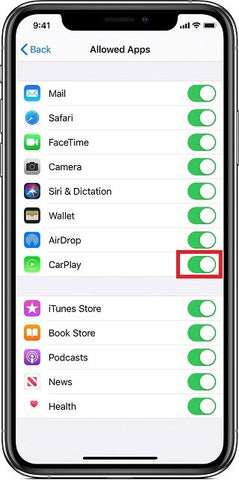
Important: If you are using parental controls or screen time restrictions, make sure that CarPlay is in the list of allowed apps.
4. The CarPlay connection is locked.
Another problem with wireless CarPlay could be that the CarPlay connection is locked. If it's locked, CarPlay cannot activate.
Solution :
You can resolve this issue by going to Settings > General > CarPlay , selecting your car from the list of connections > Enable CarPlay .
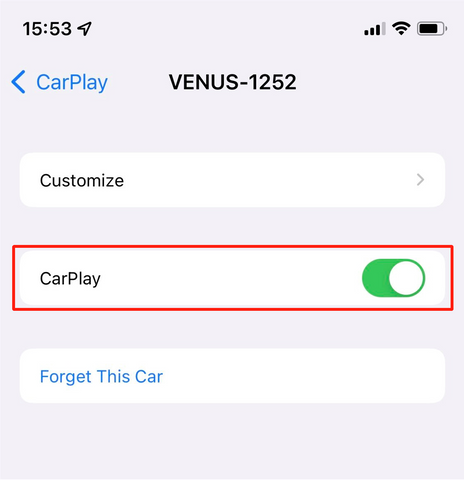
Additional tip: If the problem persists, try completely deleting the connection and reconfiguring it from scratch.
5. Restart and update
Restarting and updating the device may resolve connection problems.
Recommended procedure:
Restart your devices
- Restart your iPhone : Press and hold the power button and follow the on-screen instructions.
- Restart your CarPlay system's main screen : Turn off the ignition, wait 30 seconds, then turn it back on.
- Reset the Bluetooth connection : Turn Bluetooth off and then back on in the settings
Update your iPhone
- Go to Settings > General > Software Update
- Download and install any available iOS update
- Restart your iPhone after the update
Important: iOS updates often include bug fixes specific to CarPlay. Keeping your system up to date is essential for a stable and reliable connection.
If you use a wired connection occasionally, make sure to use a certified compatible USB cable to ensure the best connection.
Additional solutions if the problem persists
If none of the above solutions work, try these advanced steps:
- Forget and reconnect : In Settings > General > CarPlay, remove your system and reconnect it completely.
- Reset network settings : Settings > General > Transfer or reset iPhone > Reset > Reset Network Settings (this will delete all saved Wi-Fi passwords)
- Check for interference : Move other Bluetooth devices that might be causing interference away from you.
- Check the USB cable : If you sometimes use a wired connection, make sure the cable is Apple (MFi) certified.
- Contact support : If the problem persists, contact your CarPlay system manufacturer or Apple Support.
Having black screen problems? Check out our detailed guide: Apple CarPlay Black Screen - Solutions
Conclusion
Wireless Apple CarPlay transforms your driving experience by allowing you to safely access your favorite apps. By following these 5 key solutions, you should be able to resolve most connection issues.
Summary of solutions:
- Check the compatibility of your country, phone and car
- Activate Wi-Fi and Bluetooth simultaneously
- Turn off CarPlay restrictions in Screen Time
- Unlock the CarPlay connection in the settings
- Restart and update your devices regularly
Recommended related articles:
- CarPlay Siri 2025 Guide: Setup, Common Problems, and Hidden Features
- Wired or Wireless CarPlay: Which Sounds Best?
- Download Autokit APK - Enjoy wireless CarPlay
Recommended products for CarPlay on motorcycles:
- C5 Pro CarPlay Motorcycle 5 Inch - 1080P Waterproof Front & Rear Dashcam
- CarPlay AI Box - Smart wireless solution
- AB08 Wireless AI Box for CarPlay & Android Auto - For Smart Driving
- See the entire Moto CarPlay & Android Auto collection
Need more help? Don't hesitate to contact us for personalized advice on CarPlay and our compatible systems.


